1. Introduction
As I wrote this article for introducing how's the Statiq works and help to generate the HTML site, and this time I will show you an editor that I made for writing and generating the HTML page easily!
Statiq is powerful, but you need to write the article with markdown format and build the project with Statiq, you need to handle the article template manually and it's not easy to preview / deploy. With my article before, if you want to show the image with a nice layout (with template), you also need to upload the image and input the template in your content.
That's why I made this editor!
2. The feature of the Statiq MD editor
Ok, let me show you the feature of the editor and how can it help you!
Let's have a look the editor:
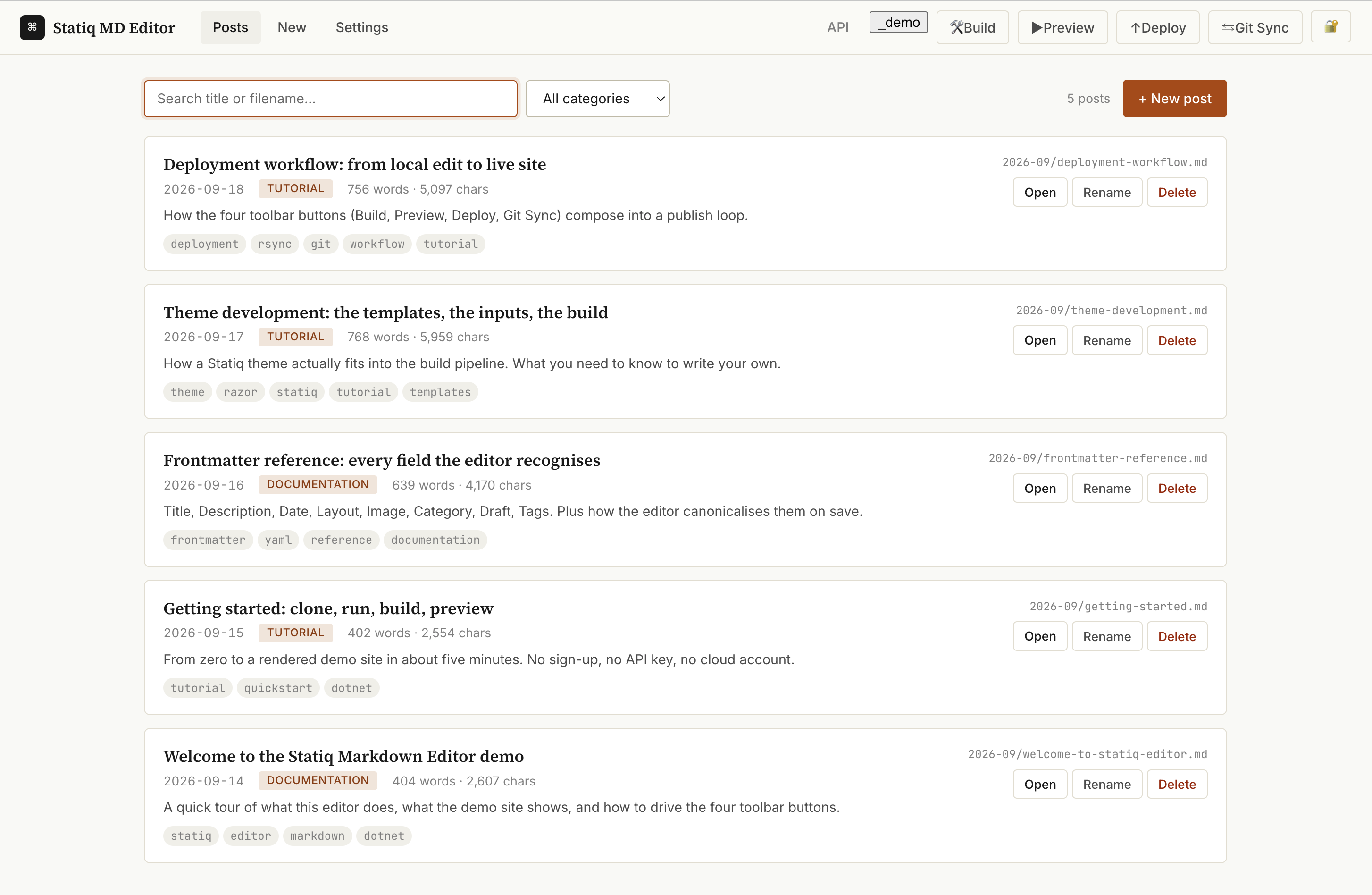
As you can see, it will list all the articles and you can edit them easily.
1) Create a post (article)
Click the New Post will show the below screen for creating a new post
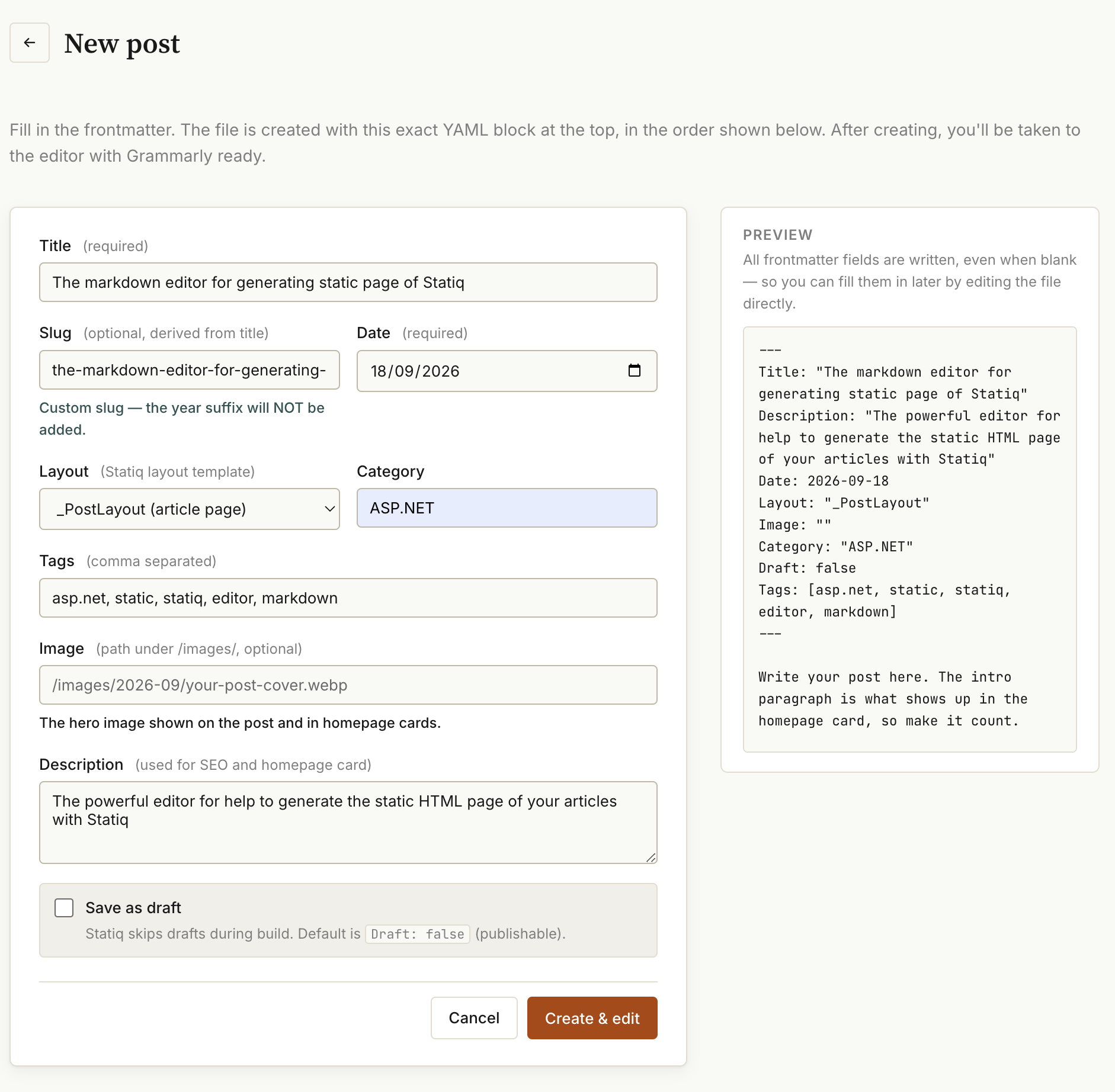
Fig. 02 — Create a new post
You need to input the post title and related information, if you don't want to publish then just click Save as draft will be ok.
2) Edit/writing a post
After creating the post, there is a header template as below
---
Title: "Deployment workflow: from local edit to live site"
Description: "How the four toolbar buttons (Build, Preview, Deploy, Git Sync) compose into a publish loop."
Date: 2026-09-19
Author: Statiq Markdown Editor
Layout: _PostLayout
Category: Tutorial
Tags: [deployment, rsync, git, workflow, tutorial]
---
These values are generated from New Post screen, but you also can edit them. The system will be based on the Category to generate the category for the website (as you can see in New Post screen)
You can preview the content at runtime
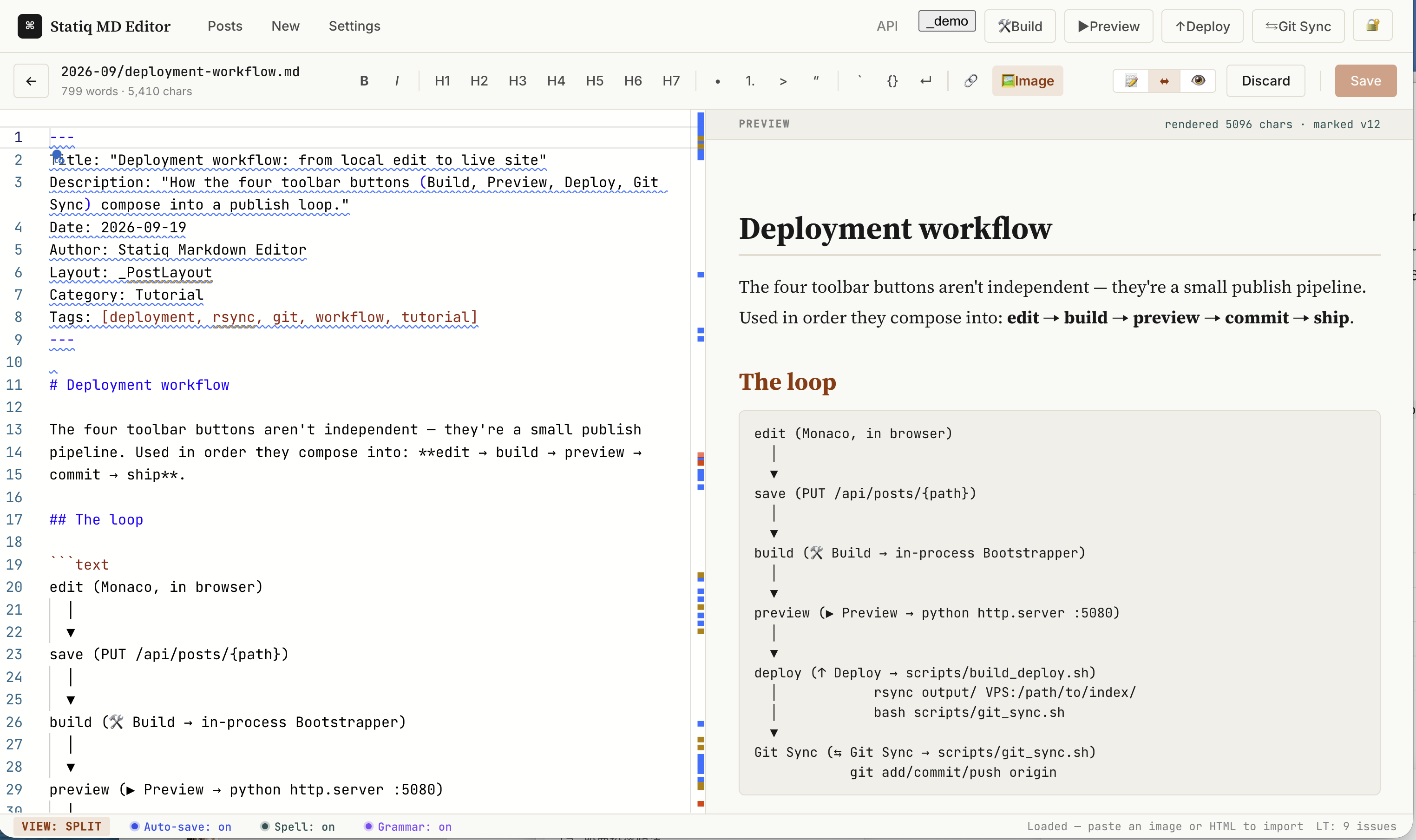
Fig. 03 — Edit and preview the content
The editor also support spell and grammar checking
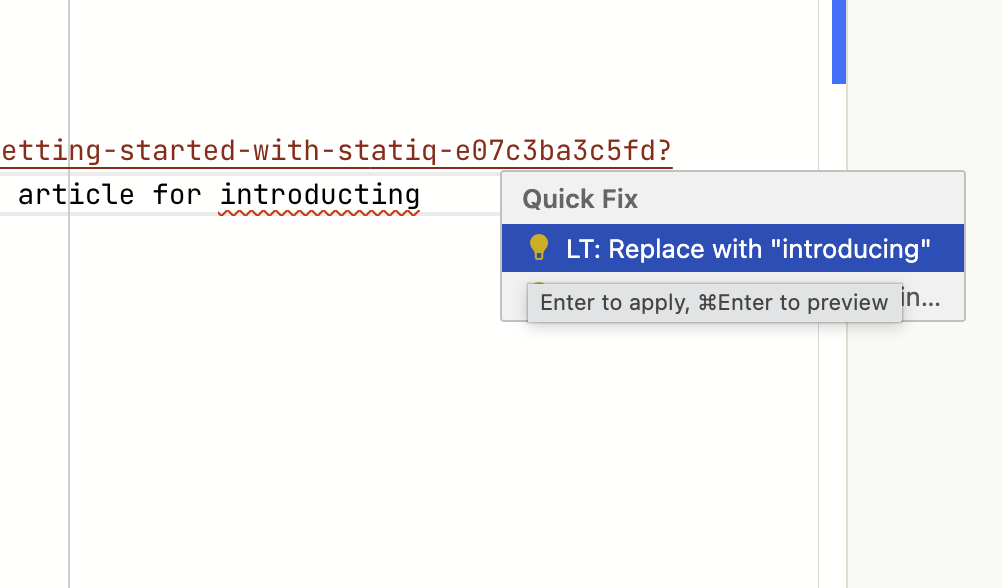
Fig. 04 — Grammar checking
One of powerful feature that can support past an image from memory or a file, you can copy an image and just Ctrl + V (or Command + V) in the editor, it will be auto to upload to the website input/images folder by date, and will also convert the image to a .webp format.
Also, it will generate the below template with an image:
<?# Figure src="/images/2026-09/01-statiq-md-editor-124413.webp" alt="" ?>

Fig. 01 — Statiq MD Editor

<?#/ Figure ?>
with this template, you will see the nice layout and can click to enlarge the image.
The Statiq MD Editor is also support auto save in every minute, you can enable/disable these feature on the status bar

There are some basic editor buttons on toolbar, and these are support shortcut

Fig. 07 — The toolbar
3) Deployment
The other useful feature is help to deploy and preview your static website!
You will find the below function buttons on top of the editor:

Fig. 08 — Deployment Feature
Build: Generate the static website with Statiq is need to build every time, this button can help to build the project and generate the HTML files
Preview: You can preview your static HTML website with this button, it will also build the site first.
Deploy: This can help to deploy your website to your hosting. As my article mention, you need to create a script for that, and I also create an example in github
Git Sync: This can help to sync your articles (markdown files) to your github repository for backup. Before use it, you need to create and commit your website to github already.
4) Support Multiple Sites
You can add multiple sites into Statiq MD Editor. You just need to duplicate the _demo site and rename the folder then you will get another static website, you can create your own website theme, for example, I am maintaining 3 website below:
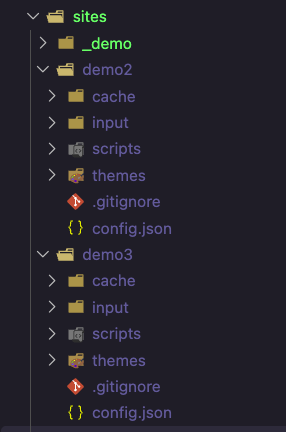
Fig. 09 — There are 3 websites
then and you can switch them in Settings as below
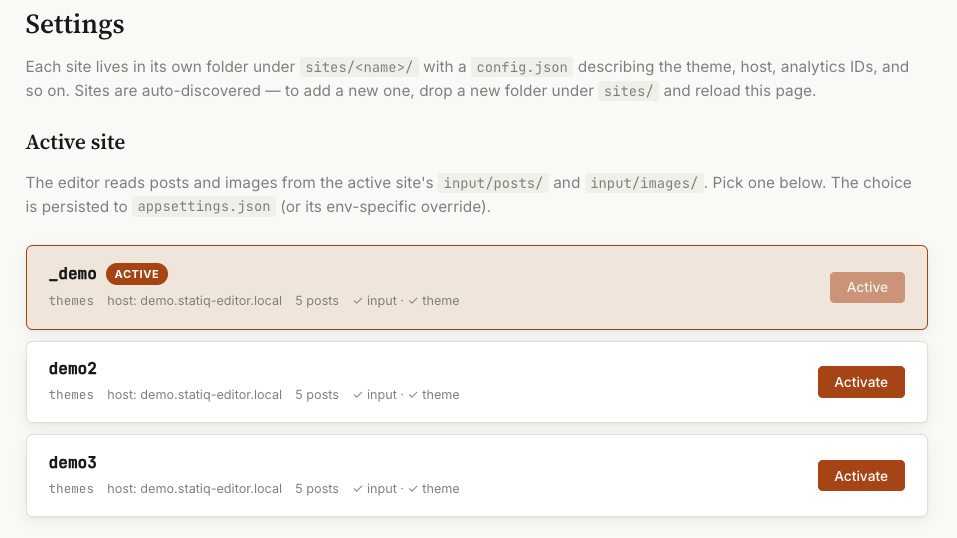
Fig. 10 — Switch the activate site
5) Use as a desktop application
This editor was made with ASP.NET as a website format, you can deploy to your hosting with an online markdown editor, but you also can use it as a desktop application with multiple platform.
Statiq MD Editor has included the electron framework, so you can generate a desktop application with electron easily with below command:
# 1. Publish the backend as a single-file self-contained binary
npm run publish:server
# → dist/server/StatiqMarkdownEditor  (one executable, contains .NET runtime)

# 2a. Package for macOS (Apple Silicon, unpacked .app directory)
npm run package:mac

# 2b. Package for macOS as a DMG installer
npm run package:mac-dmg

# 3. Output
dist/mac/Statiq Markdown Editor.app
# or  dist/mac/Statiq Markdown Editor-1.0.0-arm64.dmg
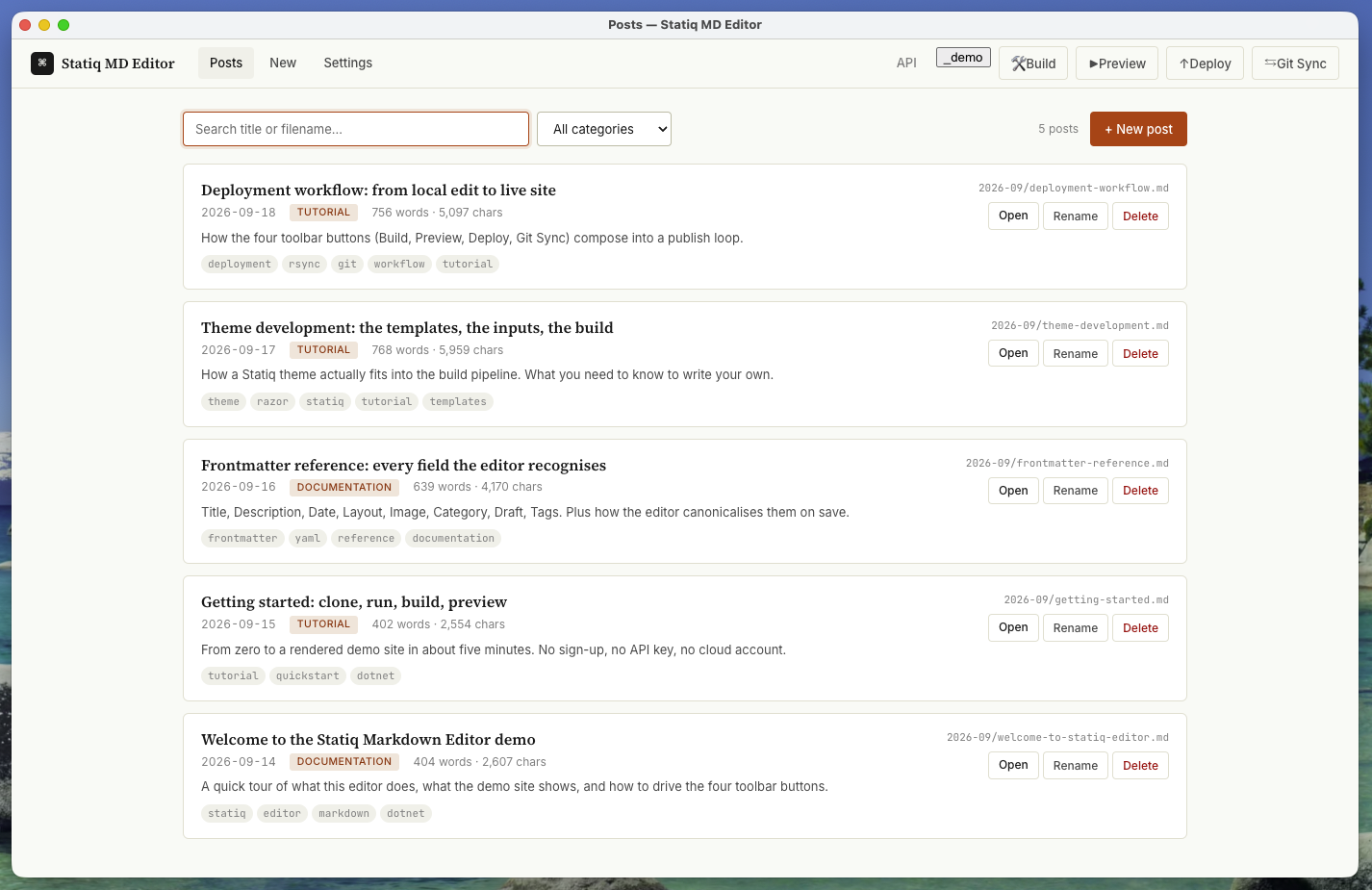
Fig. 11 — Use as a desktop application
3. Conclusion
Statiq is a powerful lib for help to generate the HTML static website, but it also need to write the markdown files with other editor and need to migrate by manually, so I made this tool to resolve the editor issue and easily to use for creating and deploy the static website.
If you are interested in it, please go to below to download the source code, and you will find more and details usages in github
https://github.com/coderblog-winson/statiq_markdown_editor.git
You can create your own website theme and welcome to share to me :)
Comments
Discuss the article below. Markdown is supported. Sign in with email or GitHub to leave a comment.